

3. Telling Buyers You're Open Today
Buyers check whether you're open before they drive. What decides it: your stall's switch, your hours, the instant-orders pause and product availability.
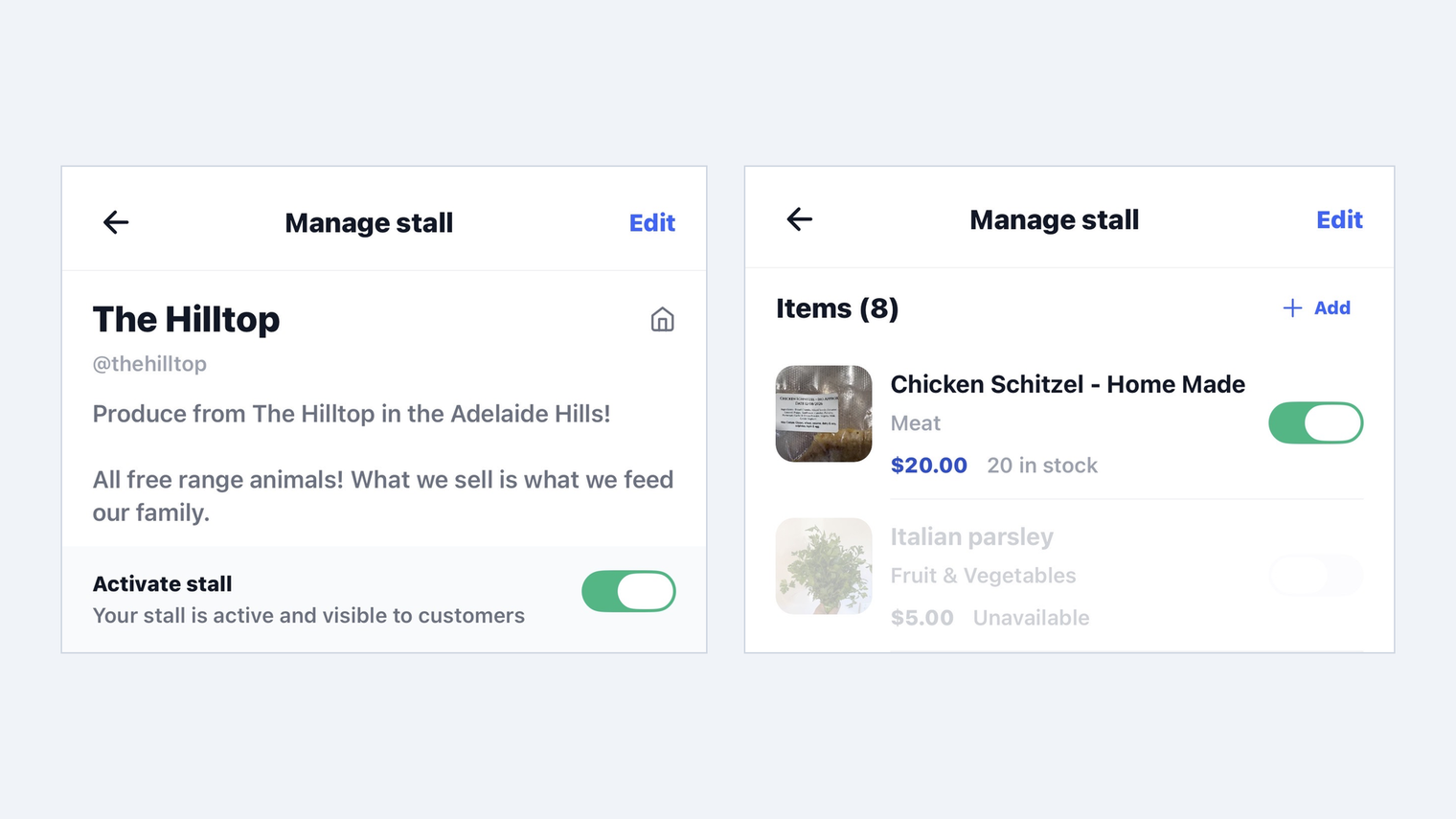
A stall can have good produce, fair prices and an easy road in and still get no visitors, because nobody can tell whether it is open.
Whether you show as open comes down to the switch on your stall and your Operating Hours. If your hours are not set, or not honest, buyers cannot tell when to expect you, no matter how good your listings are.
First, the master switch
One switch sits above everything else: Activate stall ("Your stall is active and visible to customers"). While you are still setting up, the app shows a "Ready to go live" banner with a Go live button. Until you press it, nobody can see you at all. The same switch is your open sign from then on. Turn it off when you are shut and it stops showing to customers, and flick it back on when you are trading again.
Your operating hours
Your Operating Hours matter as well. You set them on Manage stall: each day has its own on/off toggle and its own times, with an "Open 24 Hours" option and an "Apply to all days" shortcut if your week is regular. Set the days you genuinely trade, and the app does the announcing for you: your stall page shows the status to buyers under Operating Hours.
Pausing orders without closing
Two toggles on Manage stall cover the situations an open/closed sign cannot.
Accept instant orders. Switch it off and, as the app puts it, "Instant orders are paused: new orders are off, but orders already placed aren't affected." That is the one for when you are at capacity or packing up: nothing new arrives, and nobody who has already ordered gets stranded.
Accept pre-orders. The same idea for pre-orders: pause them on their own without touching anything else.
Then there is the situation every good stall has: it is eleven in the morning, the bread has gone, and you are not closed exactly but there is nothing to come for. Sold out lives at the product level. On Manage stall > Items, every product has its own availability toggle: green means live with a stock count, off means it shows as "Unavailable". Flip off what has run out, or let stock do it for you: an item you leave available with stock at 0 shows "Out of stock" in red, while a toggled-off item greys out as "Unavailable". Two different signals: "gone for today" versus "not on offer".
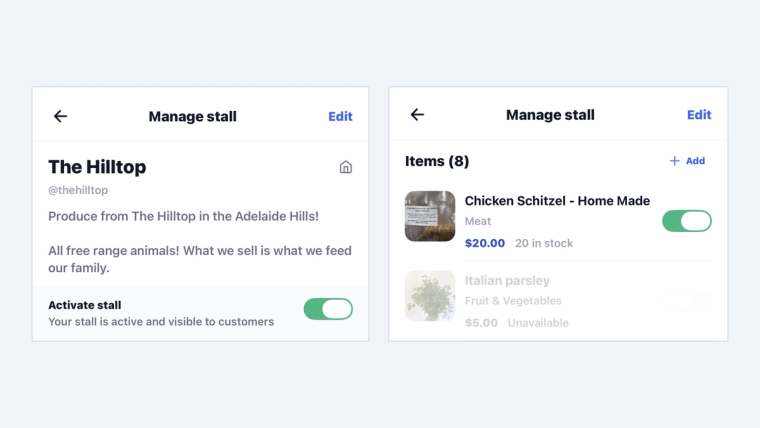
Use them. Marking something unavailable is not admitting defeat: it is the difference between a customer who thinks "they sell out early, I will come sooner next week" and one who thinks "I drove out there for nothing".
Telling your followers, automatically (Standard)
On the Standard plan, opening your stall can notify the buyers who have followed you.
This is the closest thing to a shortcut in the whole app. These people have already decided they like what you do. They are not being persuaded, only reminded, and reminded at the exact moment it is useful, which is when the table is full.
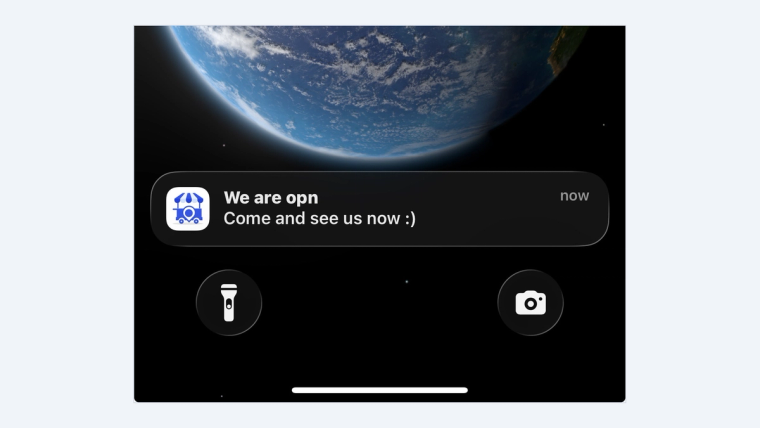
A note on restraint: the value of that notification is that it means something. If you fire it six times on a Saturday, it stops being news. Once, when you are properly stocked, is worth more than five half-hearted alerts.
What this changes
Being findable and being open are different problems. Good listings get you into search results; honest hours and live availability get you into the shortlist of someone deciding what to do this afternoon.
The habit is small: set hours you actually keep, flip a product to Unavailable when it runs dry, and pause instant orders when you pack up early. Thirty seconds a day, and it is the difference between being on the map and being in the running.
Ready to put it into practice? Your stall is free to start at sidestall.au.
Next in this series: getting paid before anyone arrives.