

4. Getting Paid: In-App Payments and Knowing Your Take-Home
Card, Apple Pay and Google Pay straight to your bank, no terminal and no cash tin. And an earnings screen showing what came off, so payday never surprises.

Cash at the gate works, and plenty of good stalls will never do anything else. This post is not an argument against the tin.
It is about what changes when the money can also arrive before the buyer does.
How in-app payment works
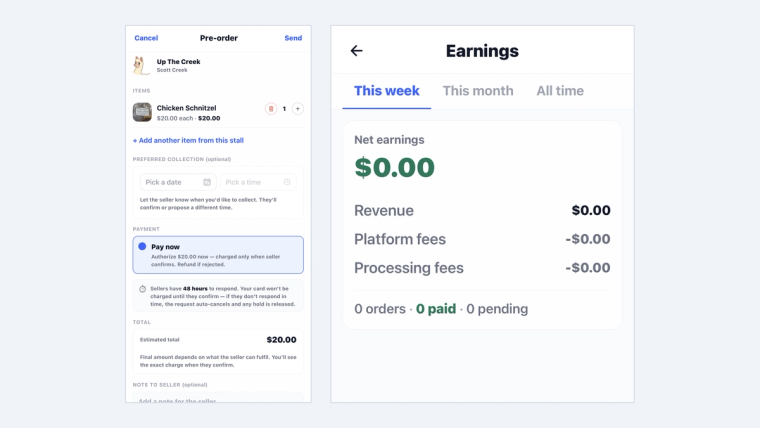
A buyer pays in the app by card, Apple Pay or Google Pay. The money goes to your bank account. There is no terminal to buy, no float to count, and nothing to bank on Monday. When a buyer orders ahead and picks Pay now, their side is one screen: an order summary, an optional note to you, and a single Send button.
You still choose what you accept. On Edit Stall > Payment Types you can add the off-platform ways you take money: Terminal, EFT and PayID. They appear as chips on your stall page, so buyers know before they set off. Pay in SideStall is added automatically once you complete Stripe Connect. Nothing about listing on SideStall obliges you to stop taking coins.
What it costs: there is no monthly fee to take payments on any plan, including Free. A small platform fee plus card processing applies only when a buyer actually pays in the app. The current rate is on our FAQ page. If an order is cancelled or refunded, the FAQ covers who pays what, and in most cases it costs you nothing. Cash at the gate never touches us at all.
The Stripe step
To take card payments, Stripe has to verify who you are. Its regulators require that check, and we cannot skip it on your behalf.
It is the least enjoyable part of joining, and we would rather say so than let you find out halfway through. It asks for identity details and bank details. If you get stuck, tell us. We would much rather help you finish than have you give up at that step.
Knowing exactly what you keep
Your Earnings screen shows what buyers paid, what came off, and what landed in your account: net earnings are your revenue minus the platform fee minus card processing, with tabs for this week, this month and all time, and a running count of orders and what has been paid. Not an estimate at the end of the month. The actual numbers, whenever you look.
This matters more than it sounds for small producers, because it lets you price with your eyes open. If you know your take-home on a $12 dozen, you can decide whether $12 is right, rather than discovering the answer at tax time.
What this changes
Two things, and the second is the bigger one.
The obvious one: you are not handling cash, chasing change, or leaving a tin unattended.
The one people notice later: a paid order is a commitment. Someone who has paid turns up. That single fact is what makes the next feature in this series, pre-orders, worth the effort, and it is what lets you stop guessing how much to make.
Ready to put it into practice? Your stall is free to start at sidestall.au.
Next in this series: pre-orders, and taking a deposit on anything you sell by weight.